If you are responsible, like me, for getting a large number of dates into an Outlook calendar you’ll want some way of automating the process - particularly if the dates don’t repeat regularly and there are loads of them!
The first step of the process is to get all the dates into an Excel spreadsheet. The column headings you’ll need if you use my method, from the left, are:
- Subject
- Location
- Required Attendees
- Categories
- Start Date
- End Date
- Start Time
- End Time
- Reminder
- Duration
- Optional Attendees
- Description
At this stage, you could just save your spreadsheet as a .csv file and use File > Import to get the dates into the right calendar in Outlook. But if you do this you will quickly encounter a problem - the required attendee field won’t be populated and so you won’t get to share you imported dates with those you want to invite. Don’t ask me why this failure occurs, but it does. The forums are largely silent on how to fix it :-(
So you’ll need to run a VBA script to get your events and attendees across into Outlook. Here are the steps:
- Open Outlook
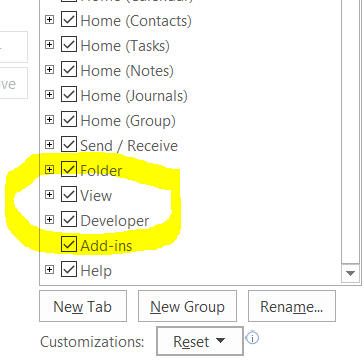
- Go to File > Options > Customize Ribbon and make sure the Developer checkbox is ticked:
- Close the window.
- Then click on Developer > Visual Basic:

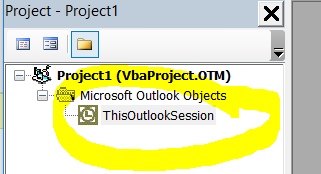
- Make sure you are in a project associated with 'ThisOutlookSession':
- Now copy and paste this code into the VBA window (full disclosure - I didn't write this myself, I simply tweaked code very generously shared by Slipstick Systems here):
Sub CreateMeetingsfromCSV() ' Worksheet format: Subject, Location, Required Invitees, Categories, Start_Date, End_Date, Start_Time, End_Time, Reminder, Duration, Optional Attendees, Resource ' Possible Values for Reminder Field is :'No Reminder','0 Minutes','1 Day','2 Days', '1 Week' Dim xlApp As Object 'Excel.Application Dim xlWkb As Object ' As Workbook Dim xlSht As Object ' As Worksheet Dim rng As Object 'Range Dim objAppt As Outlook.AppointmentItem Dim myAttendee As Outlook.Recipient Dim myOptional As Outlook.Recipient Dim myResource As Outlook.Recipient 'Set xlApp = New Excel.Application Set xlApp = CreateObject("Excel.Application") strFilepath = xlApp.GetOpenFilename If strFilepath = False Then xlApp.Quit Set xlApp = Nothing Exit Sub End If Set xlWkb = xlApp.Workbooks.Open(strFilepath) Set xlSht = xlWkb.Worksheets(1) Dim iRow As Integer Dim iCol As Integer iRow = 2 iCol = 1 While xlSht.Cells(iRow, 1) <> "" Set objAppt = Application.CreateItem(olAppointmentItem) Set myAttendee = objAppt.Recipients.Add(xlSht.Cells(iRow, 3)) myAttendee.Type = olRequired 'Set myOptional = objAppt.Recipients.Add(xlSht.Cells(iRow, 11)) 'myOptional.Type = olOptional 'Set myResource = objAppt.Recipients.Add(xlSht.Cells(iRow, 12)) 'myResource.Type = olResource
With objAppt .Subject = xlSht.Cells(iRow, 1) .Location = xlSht.Cells(iRow, 2) .Categories = xlSht.Cells(iRow, 4) .Start = xlSht.Cells(iRow, 5) + xlSht.Cells(iRow, 7) ' Use either .Duration or .End .End = xlSht.Cells(iRow, 6) + xlSht.Cells(iRow, 8) .Body = xlSht.Cells(iRow, 12) & vbNewLine & vbNewLine & "Dates fed from this sheet: http://gg.gg/dra28" '.Duration = xlSht.Cells(iRow, 10) ' This tells Outlook it's a meeting .MeetingStatus = olMeeting
Select Case xlSht.Cells(iRow, 9) Case "No Reminder" .ReminderSet = False Case "0 minutes" .ReminderSet = True .ReminderMinutesBeforeStart = 0 Case "1 day" .ReminderSet = True .ReminderMinutesBeforeStart = 1440 Case "2 days" .ReminderSet = True .ReminderMinutesBeforeStart = 2880 Case "1 week" .ReminderSet = True .ReminderMinutesBeforeStart = 10080 End Select For Each myAttendee In .Recipients myAttendee.Resolve Next .Save .Display '.Send ' hit the send button yourself to avoid Select names dialog End With iRow = iRow + 1 Wend xlWkb.Close xlApp.Quit Set xlWkb = Nothing Set xlApp = Nothing End Sub
- Once you are done click the green run button on the VBA taskbar.
- You will be prompted to navigate to the Excel file you wish to import. Navigate to it.
- Watch the magic happen!
Note that this is a low-risk strategy because .Send is commented out. You will need to manually press send on each invitation - giving you the opportunity to sense check things one last time before they go out. If things have gone wrong you can delete the entries before anything bad happens!
You’ll want to edit the .Body contents too, of course.
Have a play!